|
CanoSong
CanoSong composes and plays songs. Each song is randomly generated, original and unique. While one song plays, subsequent songs are prepared. |
Random
The melodies, arrangements and the sounds of the instruments are generated randomly. 'One-touch' editing can be used to change instruments for a song. |
Versions
CanoSong comes in two versions, a free version, which just plays the songs, and the full version which allows the library-saving and editing features to be used. |
How good are the songs?
Song quality is a matter of personal taste, and while some songs may not resonate with everyone, CanoSong generates many songs that may be worth keeping. Currently, we strive to make the majority of songs at least listenable, but many of them turn out to be surprisingly good. The full version comes equipped with a rating/liking scheme that enables users to mark and filter their favourite stored songs. |
Collect
You can save songs to your library, as well as instruments for later use. In the 'Settings' tab, you can adjust the frequencies at which the saved songs will be played or the saved instruments will be used.. |
Generation
No use is made of artificial intelligence methods, or use made of any data from existing music. The app is self-contained, does not connect to a server, and will continue to operate in airplane mode. |
The name
CanoSong may refer to the Latin word 'cano' meaning 'to sing'. Or it could just mean 'song in a can'. |
Song names
In the spirit of the random nature of the song generation, the names of the songs are generated using randomly made up words. The words are meaningless but should at least be pronounceable. Now and again real words are generated purely by chance. |
Export
Songs can also be exported as caf or midi files and are then accessible via the Files App. |
Legal
In a nut shell, for commercial and non-commercial use, any music produced by CanoSong may be used or adapted royalty-free, but please include an attribution. Full Terms |
Samples
Here are a few songs generated using CanoSong
| 1 | |
| 2 | |
| 3 | |
| 4 | |
| 5 | |
| 6 | |
| 7 | |
| 8 | |
| 9 |
Guide and Screenshots
Controls regarding the playing song
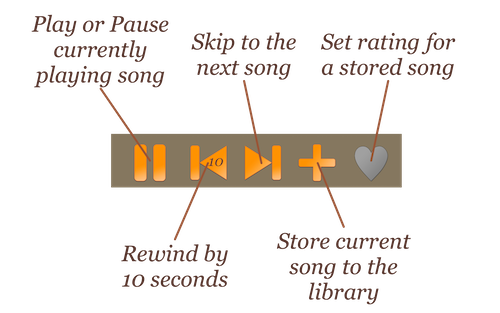
They amber controls are ready to use, but greyed-out ones are not ready or applicable.
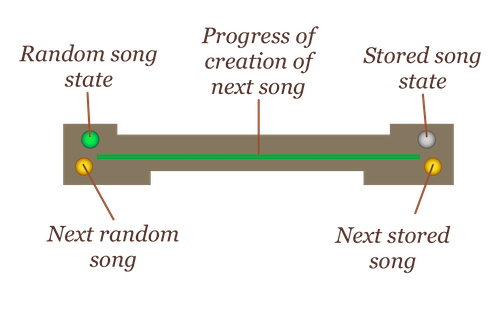
The round lights indicate the status of the preparation of the songs. The two lights on the left refer to new random songs, those on the right to songs fethced from the library. The colours are green for 'currently playing', amber for 'prepared and waiting', and red for 'preparing but not yet ready', and grey for 'not there'.
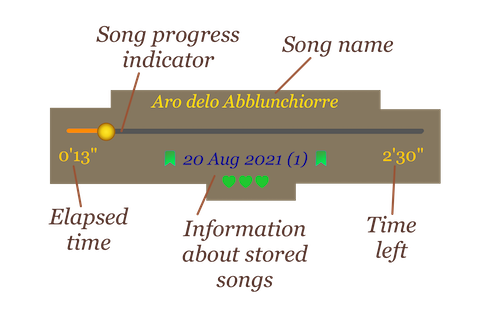
The progress bar indicates progress of the song and can be used to move the current playing point. If a song is stored, then the date of strage is indicated together with any rating.
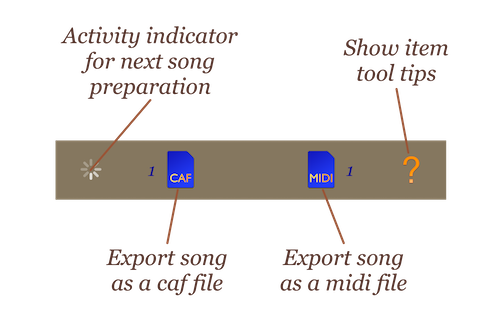
The activity indicator shows when the next song is being prepared. The export function creates files in the CanoSong file area accessible via the 'Files' app. The numbers next to the buttons show how many of those files have been created. The midi files produced do not attempt to replicate the sounds of the instruments, but just allocate random instruments on export. The caf files produced are not compressed, but various audio file conversion utilities are available to deal with this. The reveal tool tip button overlays the screen with lables indicating the function of various buttons and controls on the screen.
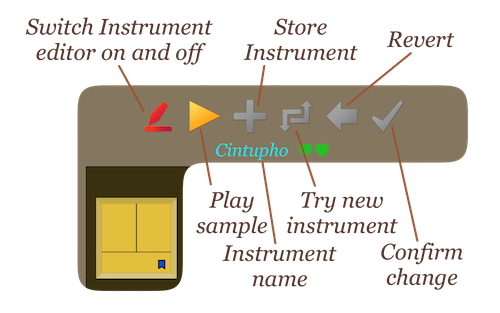
These are the controls for 'one touch' instrument editing. Identify and select an instrument, then play a sample. One can then try randomly created replacement instruments until a suitable replacement obtained. Revert to original if nothing found. Confirm the chnages to recreate and play the song with the replacement instruments. When the instrument is stored, it is given a randomly generated name and the 'store instrument' button becomes a rating picker button. In this example the selected instrument has a rating of 2 hearts.
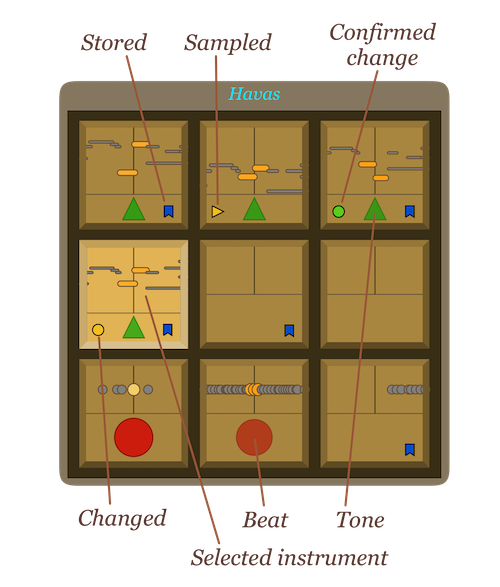
This animates the current song with each instrument animated separately. Particular instruments can thus be identified and selected. Various marker symbols are used to show if the instrument has been changed, stored or changes confirmed. Tones and Beats have a slightly different format.
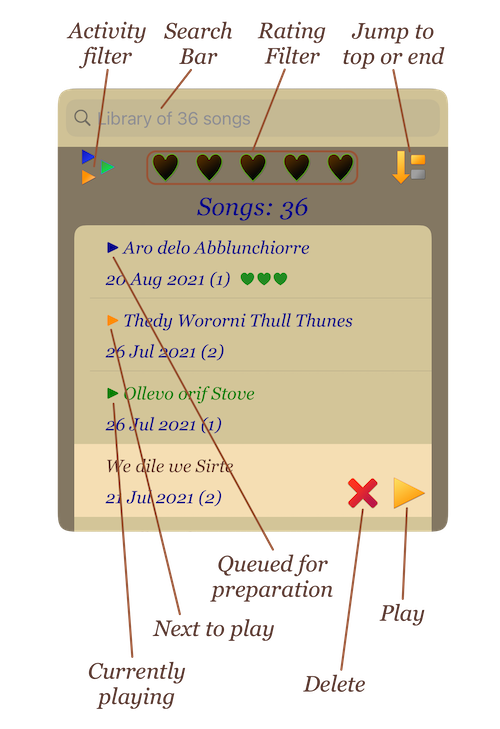
Access to the stored songs is via the 'Song Bank' tab. The search Bar filters by characters in the song name. The activity filter will filter so only the currently playing stored song and queued songs are shown. The hearts allow filtering by the rating assigned to the song - if set, then only those songs will play whenever a stored song is randomly chosen to play. The jump button simply allows quick access to the top and end of the list. The small blue, amber and green triangles indicate the state of the song in terms of preparation or if playing. If a particular song is selected, then remove and play buttons appear. The remove button sets the song to be removed from the library when next leaving the page. This allows an 'unremove' option to appear. The play button queues that song to be prepared and then played when ready.
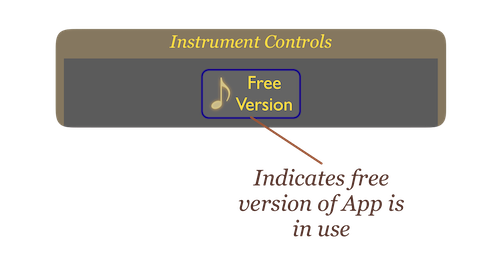
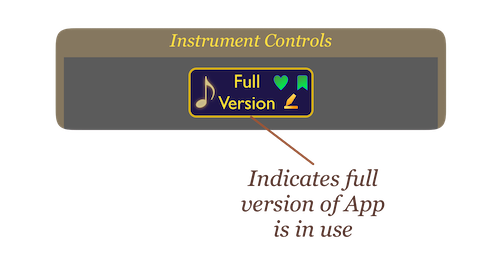
The App comes in two versions. A free version and a purchased full version, which is obtained as an in-app purchase. Either of the two graphics below indicate the Version in use. These are visible when the instrument editor is deselected.
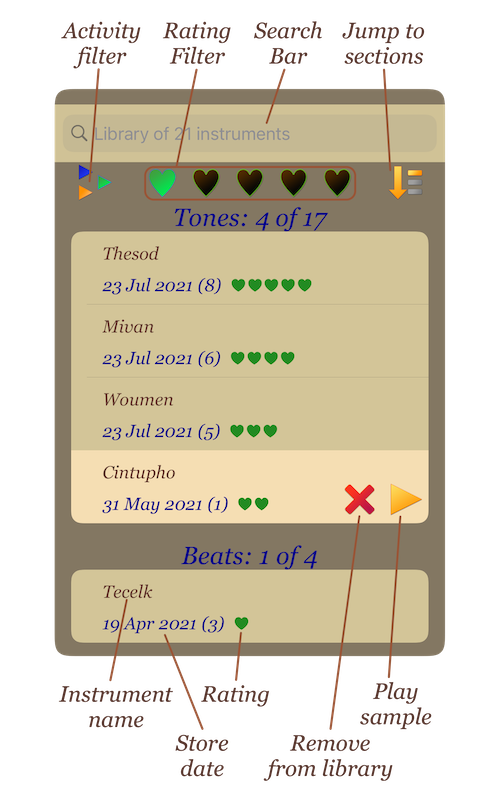
Managing stored songs can be done via the 'Instrument' tab. The search Bar filters by characters in the instrument name. The activity filter will filter so only the currently playing stored instruments are shown. The hearts allow filtering by the rating assigned to the instrument - if set, then only those instruments will be included in random selection of stored ones. The jump button simply allows quick access to the top and end of the Tones and Beats sections. When selecting a particular instrument remove and play buttons appear. The remove button sets that intrument to be removed from the library when next leaving the page. This allows an unremove option to appear. The play button plays a short sample of that instrument.
Stored probability
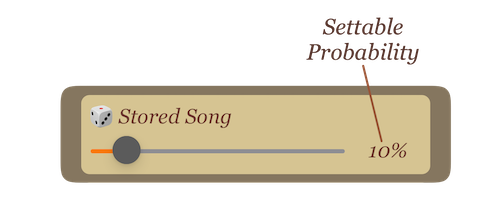
For each song to be played, CanoSong either creates a new song or randomly picks one from the library of previously stored songs. This control sets the probability of picking one from the library.
Stored Tones and Beats Probabilities
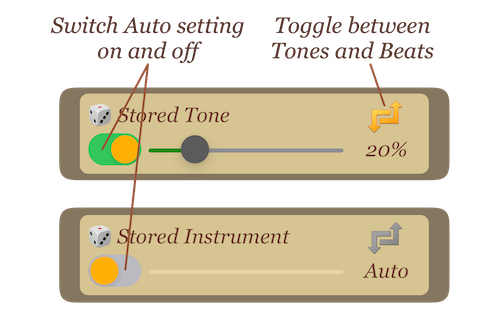
Canosong randomly produces new instruments, but also uses previously stored ones. By default this is done automatically, but this control allows the probabilities of stored Tones or Beats to be individually set.
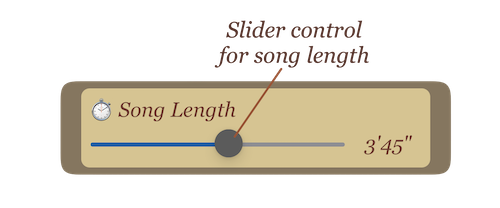
Song Length Control
This slider control sets the duration of the randomly generated songs.
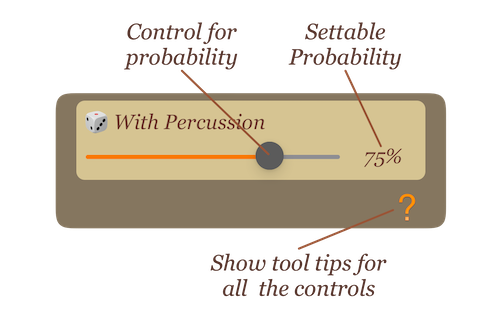
Percussion Control
This slider control sets the probability that a randomly generated song includes percussion.